Monday, March 28, 2011

Accessing SharePoint 2010 Logging Database

By default, the database is called WSS_Logging should be the starting point for administrators and developers to collect and analyse information. The following demonstrates how to access the database and run a view (that already is installed) against it.

  • Open up SQL Server Management Studio
  • When asked for authentication, log in to the correct instance where SharePoint is running using your windows authentication credentials
  • Navigate to the WSS_Logging database and click on the plus sign to expand it as shown in figure below:

image

  • Under the toolbar at the top, click on the New Query button
  • In the new query window, type in the following query:

SELECT * FROM RequestUsage

  • Click Execute.
  • Results are populated in the window pane below the query, as seen in the following screenshot:

image

RequestUsage is an out of the box view that provides site usage information. It provides information such as the referring URL, the browser being used, the site ID, the web ID, the server URL, the request type, and when it was done. There are 24 views installed by default as shown in figure below:

image

The logging database contains, but is not limited to, the following information:

  • ULS logs
  • NT event logs
  • Performance counters
  • Feature usage
  • Blocking queries
  • Site usage
  • Timer job information

Web Part Public Properties, Attributes and Type of Attributes

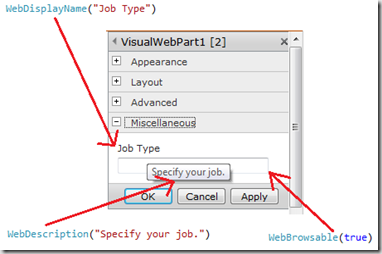
You can decorate the public properties of the web part class with the following attributes from System.ComponentModel so that your web part can runs in a stateless environment, like SharePoint:

  • WebDisplayName - This string shows as the label for the control in the Editor pane.
  • WebDescription - This string shows as a tooltip over the display name.
  • WebBrowsable - When this Boolean is set to true, the end user will be able to see the property in the Editor pane. Set it to false to imperatively set the property’s value on behalf of the end user.
  • Personalizable - This enum has two settings:
    • PersonalizationScope.Shared indicates that SharePoint should only store one value for everyone.
    • PersonalizationScope.User indicates that SharePoint should still store one common value for everyone, but allow anyone who has permission to personalize to change that value to whatever he or she would like it to be.
image

The following code example demonstrates how to use these attributes:

    [ToolboxItemAttribute(false)]
    public class VisualWebPart1 : WebPart
    {
        private string _jobTypeName = string.Empty;

        [WebDisplayName("Job Type"),
        WebDescription("Specify your job."),
        WebBrowsable(true),
        Personalizable(PersonalizationScope.Shared)]
        public string JobTypeName
        {
            get { return _jobTypeName; }
            set { _jobTypeName = value; }
        }
    }

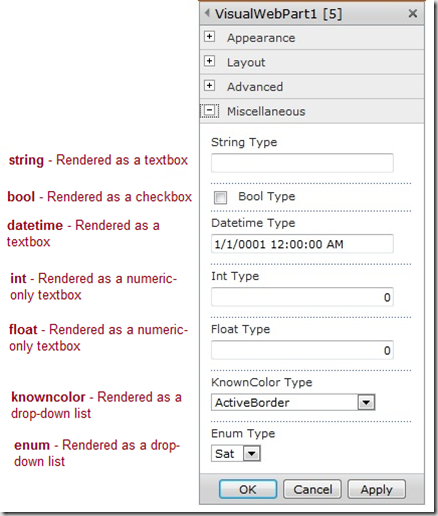
Each public property can have a unique set of attributes. SharePoint supports several different types:

  • string - Rendered as a textbox
  • bool - Rendered as a checkbox
  • datetime - Rendered as a textbox
  • int - Rendered as a numeric-only textbox
  • float - Rendered as a numeric-only textbox
  • knowncolor - Rendered as a drop-down list
  • enum - Rendered as a drop-down list

The following figure depicts how SharePoint render different types of public properties:
image

Code sample as shown below:

[ToolboxItemAttribute(false)]
public class VisualWebPart1 : WebPart
{
    private string _stringType = string.Empty;
    [Personalizable(), WebDisplayName("String Type"), WebBrowsable(true)]
    public string StringType
    {
        get { return _stringType; }
        set { _stringType = value; }
    }

    private bool _boolType = false;
    [Personalizable(), WebDisplayName("Bool Type"), WebBrowsable(true)]
    public bool BoolType
    {
        get { return _boolType; }
        set { _boolType = value; }
    }

    private DateTime _datetimeType;
    [Personalizable(), WebDisplayName("Datetime Type"), WebBrowsable(true)]
    public DateTime DatetimeType
    {
        get { return _datetimeType; }
        set { _datetimeType = value; }
    }

    private int _intType = 0;
    [Personalizable(), WebDisplayName("Int Type"), WebBrowsable(true)]
    public int IntType
    {
        get { return _intType; }
        set { _intType = value; }
    }

    private float _floatType = 0;
    [Personalizable(), WebDisplayName("Float Type"), WebBrowsable(true)]
    public float FloatType
    {
        get { return _floatType; }
        set { _floatType = value; }
    }

    private KnownColor _knowncolor;
    [Personalizable(), WebDisplayName("KnownColor Type"), WebBrowsable(true)]
    public KnownColor Knowncolor
    {
        get { return _knowncolor; }
        set { _knowncolor = value; }
    }

    public enum Days { Sat, Sun, Mon, Tue, Wed, Thu, Fri };
    private Days _enumType;
    [Personalizable(), WebDisplayName("Enum Type"), WebBrowsable(true)]
    public Days EnumType
    {
        get { return _enumType; }
        set { _enumType = value; }
    }
}

Sunday, March 27, 2011

Iterative Development Creates a Ton of Unwanted web.config Backup Files

Whenever SharePoint modifies the web.config file, it creates a backup copy with a BAK extension as shown in figure below:

image

These backup files can be helpful on the occasion a previous version of the web.config is needed. However, when you deploy SharePoint assets using MS Visual Studio for iterative development, they can accumulate a ton of unwanted files.

The following steps teach you how to run DOS command after each successful deployment will keep the web application IIS home directory much tidier.

  • Select the SharePoint node, as shown in figure below:

image

  • Type the following into the “Post-deployment Command Line” textbox:

DEL C:\inetpub\wwwroot\wss\VirtualDirectories\[WebApplicationHomeDirectory]\*.bak

Replace [WebApplicationHomeDirectory] with the actual file system directory that IIS refers to as the web application’s home directory.

  • Just below the Post-deployment Command Line, verify that the Default option is selected in the Active Deployment Configuration drop-down.

Thursday, March 24, 2011

Customise SharePoint v4 Master Page to Hide Recycle Bin and All Site Content Links

The following steps walk you through the process of making this common SharePoint customization:

  • Create a custom master page SharePointMalaya.master from v4.master. For details information on how to create this master page, see Customise SharePoint v4 Master Page to Add Footer.
  • Edit the CustomFooter.master file by clicking on the Edit File button.
  • From the ribbon, click the Skewer Click button, as shown in Figure below. This enables you to see the CSS that is being applied to a specific object.

image

  • With Skewer Click selected, hover over the area near where the Recycle Bin and All Site Content links are located. Move your mouse around the area and you should see the name PlaceHolderQuickLaunchBottom appear faintly.

image

  • Select it and another window will open displaying a list of styles. Click the style called ul.s4-specialNav…, as shown in
    figure below.

image

  • Before you can edit the CSS, you must first add a new panel to SPD. From the ribbon, click the Style tab and select the CSS Properties button.
  • When the new panel opens, you’ll see the top section is called Applied Rules. The style you want to modify (.s4specialNavLinkList) should already be selected as shown in figure below.

image

  • Right click the style and select New Style Copy.

image

  • At the top of the New Style dialog shown in figure below, set the new style to be defined in the “Current page”. Be sure to check the box “Apply new style to document selection”. Then select the Layout category and set the “visibility” to “hidden”. Click OK.

image

  • Save the changes made to the master page.
  • Now open your site in the web browser, you’ll see that a footer has been applied to your site, as shown below:

image

Customise SharePoint v4 Master Page to Add Footer

The following are steps of creating a custom master page to add a footer by using SharePoint Designer 2010.

  • Open your site in SharePoint Designer 2010 and click the Master Pages link in the Navigation pane.
  • Right click v4.master and select Copy.

image

  • Right click and paste another copy of the file into the Master Pages gallery.
  • From the Master Pages gallery, click next to the filename for the master page that was just
    created. From the ribbon, click the Rename button. Rename the file SharePointMalayaFooter.master.

image

  • Select the file SharePointMalayaFooter.master and then, from the ribbon, click the Edit File button.
  • Ensure that either the Split or Code view is showing. Near line 624, after <SharePoint:DeveloperDashboard runat=“server”/>, add the following code snippet:

<div class="s4-notdlg" style="clear: both; background-color:#FEAD30; padding: 10px;">&copy; Copyright 2011 SharePoint Malaya</div>

image

  • After you’ve made the change, save the fi le by clicking the Save icon in the upper left-hand corner of the screen. You will get a dialog that warns you that you are about to customize the file from the site definition. Click Yes to continue.

image

  • Click the Master Page link again from the Navigation pane on the left to return to the Master Pages gallery.
  • To apply the changes to the site, select SharePointMalayaFooter.master and then, from the ribbon, click the Set as Default button.
  • Now open your site in the web browser, you’ll see that a footer has been applied to your site, as shown below:

image

Saturday, March 12, 2011

SharePoint Designer 2010 Checking and Changing the Current User

One of the coolest feature of SharePoint Designer 2010 is the ability to check the user currently who logged in and to switch to a different user whenever you need to.

Remember the old SharePoint 2007 where you need to first login to the site, and then only you can open it using SharePoint Designer. Let say, you might be logged in with an administrator account. If you wanted to test something as a different user, how would you do that? Yeah, you’ll need to close the site and browser, login using different username via browser and open the site using SharePoint Designer 2007. Mmmmm… well, with SharePoint 2010 you don’t need to do that anymore!

To check the current user currently logged in, with open SharePoint Designer 2007, if you look in the bottom-left corner, you’ll see a tiny little person icon, as shown below:

image

Hovering over the icon with your mouse shows the name of the user currently logged in.

Clicking the icon allows you to log in with a different account.

image

Visual Studio 2010 Service Pack 1 is Now Available

Yes, Visual Studio 2010 Service Pack 1 has been released this week. Don’t forget to download and install – get the download from here: Microsoft Visual Studio 2010 Service Pack 1 (Installer).

Friday, March 4, 2011

Cumulative Updates for MOSS 2007, WSS 3.0, SharePoint 2010 has been released

Yesterday Microsoft released the Full Server Packages for February 2011 Cumulative Updates for MOSS 2007, WSS 3.0, SharePoint 2010. KB articles can be found here:

  • KB 2475886 - WSS 3.0
  • KB 2475885 - MOSS 2007
  • KB 2475880 - SharePoint Foundation 2010
  • KB 2475878 - SharePoint Server 2010
  • KB 2475879 - SharePoint Server 2010 with Project Server

February 2011 Cumulative Updates can be downloaded here:

SharePoint 2010 Development Platform Stack

Diagram below depicts how SharePoint Foundation is built on Microsoft .NET Framework 3.5, ASP.NET, and Internet Information Services (IIS). SharePoint is also built on SQL Server.

SharePointDevelopmentStack

Tuesday, February 22, 2011

Visual Studio Productivity Tool–Latest Update Released

Today Microsoft has released latest update to Visual Studio Productivity Tools. This update includes many improvements, if you like to know more about it, read the following blogs:

Enjoy it!!

Visual Studio is SIMPLY THE BEST!!!

Saturday, February 19, 2011

Supported Paths In-Place Upgrade

Simple rule! Take a look at this diagram:

SupportedPathsInPlace

Patterns & Practices SharePoint 2010 & 2007 Guidance Resources

Microsoft has released Patterns & Practices on SharePoint Guidance that are designed to help solution developers and architects make the right decisions and follow proven practices when building applications for SharePoint. The following are useful resources that you might want to explore:

Monday, February 14, 2011

SharePoint 2010 Official Site and Useful Blogs Worth Checking Out

A great starting place to understand more about SharePoint would be the MSDN SharePoint Developer Center:

You may also want to check out the MSDN Office Developer Center:

Also, Channel 9 offers a number of training kits that you can download and walk through, for both SharePoint and other Microsoft technologies. The Channel 9 Learning Center is located here:

With just these three sites, you’ll find a ton of developer resources.

Lastly, following are a few blogs worth checking out. You’ll certainly find more, but these have proven to be useful and informative over the years:

SharePoint 2007 Common Customizations and Recommendations When Upgrading to SharePoint 2010

Because of the downtime issues, in-place upgrades are better suited for small environments. In larger environments, the downtime needed to do an in-place upgrade may be too long. In-place upgrades may also not be suited for environments with significant custom code or other customizations. One of the benefits of an in-place upgrade is that the customizations in SharePoint 2007 are maintained. However, in order for your upgrade to be successful, your custom code must run in both SharePoint 2007 and SharePoint 2010.

Table below provides list of common customizations in SharePoint 2007 and recommendations on how to deal with them when upgrading to SharePoint 2010:

Customization

Good Choice

Better Choice

Custom Web Parts

Probably work out of the box with SharePoint 2010

Test on sample server, plan to rewrite for SharePoint 2010

Custom event handlers

Probably work out of the box with SharePoint 2010

Test on sample server, plan to rewrite for SharePoint 2010

Custom Site template

Create a site with the Custom Site template before upgrade

Recreate in SharePoint 2010, preferably as a Solution package and Feature

Custom site definition

Create UDF file for upgrade

Migrate to an out-of-the-box site template and deploy customizations as a Solution package and Feature

Customized (unghosted)
pages

Reset to site definition

Reset to site definition, and reapply customizations

Custom code or pages in /_layouts

Probably work out of the box with SharePoint 2010

Test on sample server, plan to rewrite for SharePoint 2010

Thursday, February 10, 2011

MSDN Virtual Lab: Introduction to Microsoft ASP.NET Web Forms 4.0

Today MSDN has released a newest Virtual Lab: Introduction to Microsoft ASP.NET Web Forms 4.0. Enjoy it!

Objectives

After completing this lab, you will be better able to:

  • Take advantage of the new ASP.NET Project Templates
  • Control server control ClientIds
  • Enable bi-directional routing support
  • Control the View State at application and page level

Scenario

ASP.NET 4 Web Forms provides enhancements in targeted areas and includes some new features. This Lab is also available online at http://channel9.msdn.com/learn and covers the following features:

New ASP.NET Project Templates

ASP.NET 4 Web Forms includes updated templates for creating new web applications and web sites. These templates include common functionality already implemented, which helps reducing the development time and provides guidance on best practices for building ASP.NET 4 Web applications.

Client IDs

Developers can now manage control IDs that affect rendered client IDs. The Control class now provides a new property called ClientIDMode that allows you to specify what behavior you want the runtime to take when determining whether or not to refactor the client ID upon rendering. This removes the previous bloat in the client ID.

URL Routing

ASP.NET 4 Web Forms introduces the new PageRouteHandler class that integrates URL Routing with Web Form Pages. URL routing in ASP.NET enables you to use URLs that do not have to map to specific files in a Web site. Because the URL does not have to map to a file, you can use URLs in a Web application that are descriptive of the user's action and are more easily understood by users and search engines. In URL routing, you define URL patterns that contain placeholders for values that are used when you handle URL requests. At run time, the pieces of the URL that follow the application name are parsed into discrete values, based on a URL pattern that you have defined.

View State

ASP.NET 4 Web Forms provides a more granular control over the View State. Developers can now disable the View State on a Page and enable it on specific server controls, and also disable it on a control an enable it on its childs.

Estimated time to complete

90 min

Computers used in this Lab

  • VS2010Labs-PC
  • The password for the Administrator account on all computers in this lab is: pass@word1